Overall Process
Once you have received your conditional acceptance notification, you must complete the necessary steps to prepare your final submission for publication. All conference venues that publish in the ACM Digital Library will follow this process. Please contact the proceedings chairs (publications2025@mobilehci.acm.org) if you have any questions.
The following chart depicts the publication process, beginning with the conditional acceptance notification until the authors receive the final acceptance notification. All steps have to be completed by the corresponding authors (the author who created the submission in PCS). All emails mentioned below will only go to the corresponding authors.
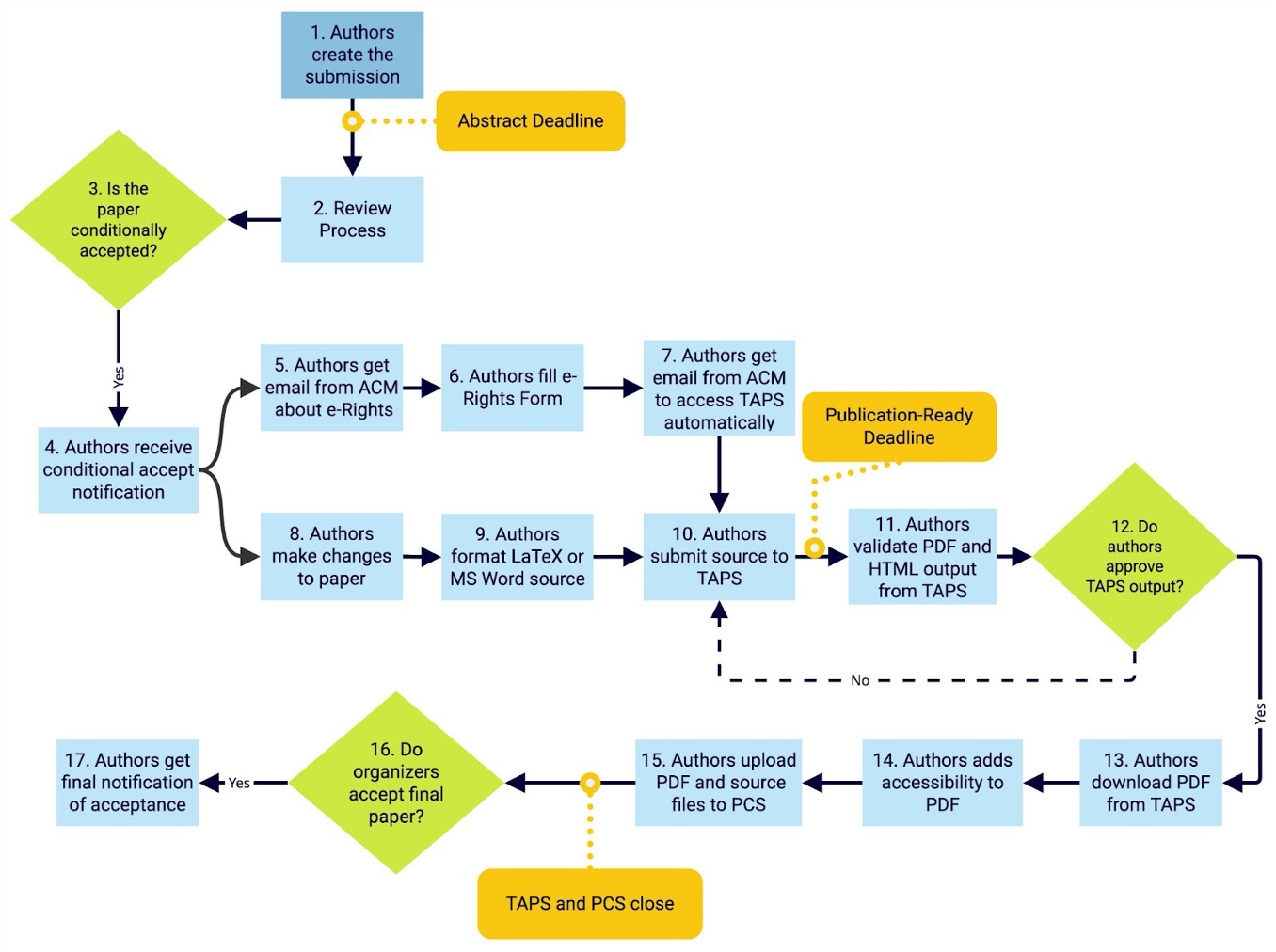
After authors get a conditional acceptance notification, they will receive an email with information about the ACM e‑Rights process. After authors complete the ACM e‑Rights form, they get an automated email with a link to the ACM Publication System (TAPS) upload form. In parallel to completing e‑rights, authors have to apply the changes requested by reviewers and format their paper according to the instructions in this document.
After the ACM e‑Rights form is completed, the authors upload the source files to TAPS. TAPS will then generate PDF and HTML5 outputs from the source files and notify the authors of problems via email. The authors then need to check whether both versions have been rendered correctly. If not, the authors need to fix errors and re‑upload the sources to TAPS. They may request help from the TAPS support and Proceedings Chairs. Authors can iteratively upload revised source files to TAPS and work on the outputs until the publication‑ready deadline. If you want to revise your final outputs, click “reject” and then resubmit your source files.
After successfully validating the outputs from TAPS, the authors add tags for accessibility to the PDF file from TAPS. The accessible PDF, source files, and all supplemental material (e.g., videos) have to be uploaded to PCS only. This step needs to be completed in PCS before the “Publication‑ready Deadline.” The Associated Chairs (ACs) or venue chairs will decide the final acceptance of the submission. Finally, the authors will receive the final acceptance notification of their submission. After this time, no changes will be required or accepted.
ACM e‑Rights
After the conditional acceptance notification, you will receive an email from the ACM e‑Rights system to begin the publication process for your paper. You must complete the e‑Rights form to progress to uploading the source files to TAPS.
- The e‑Rights form will only be sent to the corresponding author, so it is important that this person is able to respond to emails and complete the form.
- This email will come from rightsreview@acm.org. Please remain alert for this email after your acceptance notification.
- The data shown in the ACM e‑Rights form will be the same as you entered during submission time in PCS. Making manual changes is not allowed. Any mismatches will delay the publication of your paper.
- Changing the author list after the notification deadline is not possible.
Final Materials for Publication
- Document Source (required)
- Provide source file(s) for the submission (.docx file or .zip archive of LaTeX source files, including figures).
- The source file is only visible to the Subcommittee Chairs, so there is no need to anonymize it.
- Final PDF (required)
- Upload the final camera‑ready PDF generated by TAPS.
- Video Figure (optional)
- Include a video figure with titles and captions. The maximum length of the video figure is 5 minutes.
- Refer to Technical Requirements and Guidelines for Videos at CHI for details.
- Supplemental Materials (optional)
- Optional materials can include survey material, source code, data, images, additional videos, slides, etc. This information will be used to determine ACM Artifact Review and Badging.
- Provide a README.md with explanations for ZIP files and metadata.
- Supplemental Materials will only appear in the ACM DL.
Preparing Your Final Source
All authors should ensure they are using the latest version of the template available on the ACM Templates page. Note that authors using Microsoft Word must complete additional validation steps and should factor in extra time to complete this work (refer to Word Authors).
All authors must follow these guidelines:
- Use a filename that does not contain spaces and special characters. Filenames should ONLY include upper‑ and lower‑case letters, numbers, the dash “‑” and underbar “_” characters. File names that contain a space will result in an error during processing. (The period between the filename and the file extension – “figure7.png” is fine.)
- All images need to be of appropriate quality (for conversion into the required formats for the HTML5 version). We strongly recommend using vector graphics wherever possible.
- Provide accessible descriptions (instructions available in the template) for all figures.
LaTeX Authors
LaTeX source requires some preparation for final submission, please go through the ACM’s LaTeX best practices. Please ensure your source follows these requirements:
- You should use \documentclass[acmsmall]{acmart} for full papers and \documentclass[sigconf]{acmart} for all other publications (removing other tags such as “manuscript,” “authordraft,” “anonymous,” and “review”).
- SIGCHI publications use the “ACM‑Reference‑Format” numbered bibliography style.
- The LaTeX source must have a single “main” .tex file, although the project can be organized using a main .tex file that includes input from multiple .tex files. Remove all template sample files and any other .tex files that include a document class.
- Ensure that the source compiles without errors. Some editors, such as Overleaf, will tolerate errors and generate a PDF, but this is not permissible for the final publication. Check the error log and correct all compilation errors before submitting the source.
- Ensure that the bibliography compiles. Accurate bibliographies are required for publication. If it has missing entries or other errors, the source will not be accepted. Check the warning log and correct all warnings and errors. Add DOIs wherever possible.
- Check the list of approved packages for LaTeX documents. You can request to add packages to the approved list. Otherwise, remove packages not listed, as the source will not be processed when uploading to TAPS. Contact acmtexsupport@aptaracorp.com with questions.
- Apply one or more descriptors (or “concepts”) from the ACM’s Computing Classification System (CCS) to the paper. CCS is a taxonomy for the computing field. Authors can build a list of CCS descriptors at https://dl.acm.org/ccs/ccs.cfm. Then, they can select “View CCS TeX Code,” check the “Show the XML only” box, copy the XML, and paste the code below the abstract in their paper.
More information on using LaTeX to prepare your article can be found in this document.
Word Authors
After downloading the ACM Master Article Template for Microsoft Word, authors need to follow the instructions to attach the ACM Template to their .docx file. More information and best practices for using Microsoft Word to prepare an article can be found in this document and in our video walkthrough.
- Attach the template to the submission file.
- Apply the appropriate style to each element of Head, Body, and Reference. For this, refer to Table 1 (in the original Submission Template file or the list below).
- From the Template ribbon, run Crosslinking to auto-hyperlink all citations.
- Press the “ACM Template” button and run “Manuscript Validation.” Authors must run the “Manuscript Validation” macro and achieve validation before uploading the Word document to TAPS.
If the validation process is successful, then upload the files to TAPS.
If validation does not work after following the steps above, contact confsupport@aptaracorp.com and publications2025@mobilehci.acm.org.
Only the styles available in the Word template are to be used. Please see https://www.acm.org/binaries/content/assets/publications/taps/acm_submission_template.docx Table 1 for all available styles.
Word authors should follow these instructions:
- Ensure that ALL content in the Word document is styled with the correct styles as listed in Table 1 (above and provided in the template).
- Use numbered style for the bibliography.
- If a single figure contains multiple images, these must be inserted as a single image.
- All images are of appropriate quality and must be followed by a caption.
- Remove all blank lines.
-
Apply one or more descriptors (or “concepts”) from the ACM’s Computing Classification System (CCS) and add
them to the document. CCS is a taxonomy for the computing field. Authors can build a list of CCS descriptors
on https://dl.acm.org/ccs/ccs.cfm. In Microsoft Word, adding
CCS concepts to the document is a three-step
process:
- Select the formatted list of concept(s) from the CCS web interface and paste it into the document. Style with the “CCSDescription” tag. For example, “Computer systems organization~Real-time operating systems"
- Mac users: Select “View CCS TeX Code” and check the “Show the XML only” box, copy the XML and
paste
into the Word document in the following location (Mac):
- Select “Properties” from the “File” men
- Select the “Summary” tab
- Paste the XML into the “Comments” area
- Windows users: Select “View CCS TeX Code” and check the “Show the XML only” box, copy the XML
and
paste into the Word document in the following location (Windows):
- Select “Properties” from the “File” menu
- Select “Advanced Properties”
- Select the “Summary” tab
- Paste the XML into the “Comments” area
Accessibility
SIGCHI publications must follow accessibility guidelines. Detailed instructions are available in the Guide to an Accessible Submission. Authors are required to produce accessible PDFs.
Upload to TAPS
- Submission:
- Follow the ACM
Instructions for Submitting the Author’s Paper/Article to TAPS.
- Prepare the material: Create a ZIP file following the specifications above. The folder structure needs to follow the instructions on the TAPS upload website. Please check that you are using the names for folders and files as instructed on the TAPS upload website.
-
Delivering the material: The ZIP file must be submitted to TAPS using the link sent via email
from TAPS.
- If the ZIP file is less than 10MB in size, use the file uploader on that page.
- If the ZIP file is 10MB or greater in size, use the FTP link on that page.
- Note: Aim to keep the ZIP file under 10MB for fast processing.
- Note: Only upload supplementary materials to PCS (see next section), and not to TAPS.
- Processing the material: TAPS will attempt to build the PDF and HTML5 versions of your
article.
- If TAPS is successful, the corresponding author will receive an email with the PDF as an attachment and a link to the HTML5 version. Corresponding authorsYou have the option to reject and resubmit a revised ZIP file.
- If not successful, read the error messages, fix the files, and resubmit. For help, contact the Publications team (publications2025@mobilehci.acm.org) or APTARA support via the contact form or tapssupport@aptaracorp.com.
- The "PDF and HTML Proofs: available for review" email will be sent only to the corresponding author from tapsadmin@aptaracorp.awsapps.com.
- Follow the links to access the TAPS-generated PDF and HTML files.
- Carefully review the files for rendering issues or missing content.
- If needed, revise the source files, recreate the ZIP file, and resubmit to TAPS.
- Follow the ACM
Instructions for Submitting the Author’s Paper/Article to TAPS.
- Approval:
- After the final submissions are processed by TAPS, the corresponding author will receive an email asking to approve the final version for publication.
- Once you approve the proofs on TAPs, authors have to upload the source and PDF to PCS. Then your submission is complete and ready for publication in the Digital Library.
Uploading Your Final and Approved Documents to PCS
In the final step, the accessible proofs now need to be uploaded to PCS for the associated chair (AC) or venue chair to review. Additionally, a summary of changes must be submitted. Based on this, the AC will make the final decision on the acceptance of the paper, thus triggering the final acceptance email.
Green Open Access
All SIGCHI authors are encouraged to archive their work in a “green open access” repository in line with ACM’s Green Open Access Policy. Authors can host their final versions on their own homepage, an institutional repository, a repository mandated by your funder, or a non-commercial repository such as arXiv.
- Authors must archive a version (PDF) created by they author. Authors are not allowed to archive the final version (PDF) created by the ACM.
- Include the DOI assigned once you complete the e-rights form.
Frequently Asked Questions
Q: What do I do if I do not get a response email from TAPS after submitting?
A: If you have not received a notification email after 24 hours, contact confsupport@aptaracorp.com and publications2025@mobilehci.acm.org.
Q: My final PDF or HTML is showing metadata (e.g., author name, email, title) that I was not
expecting, what can I do?
A: This requires the proceedings chairs to help you; please contact publications2025@mobilehci.acm.org.
Q: Am I required to add accessibility to my PDF manually?
A: Yes.
Q: How do I add accessibility to my PDF?
A: Please see https://sigchi.org/conferences/author-resources/accessibility-guide/.
If you still have issues, reach out to diversity2025@mobilehci.acm.org.
Q: What if I do not have Adobe Acrobat Pro DC for adding accessibility tags to the PDF?
A: Reach out to the accessibility chairs (diversity2025@mobilehci.acm.org).
Q: TAPS did not provide me with my final PDF in time. What should I do?
A: Reach out to publications2025@mobilehci.acm.org
before the deadline — we will make sure that you have the time needed to review your final version.
Q: Does my final PDF have to contain author names and affiliations?
A: Yes, they have to be identical to the information you provided during submission time in
PCS.
Q: Can I upload a different PDF file to PCS?
A: No, the PDF file in PCS must be the TAPS-generated PDF with accessibility added.
Non-matching PDFs will be automatically rejected and overwritten with the TAPS-generated PDF.
Q: What do I do if I want to reupload my paper to TAPS after I have approved it?
A: Reach out to publications2025@mobilehci.acm.org.
Q: What do I do if my paper title has changed?
A: Reach out to publications2025@mobilehci.acm.org.
Q: What do I do if any author information on the HTML is wrong?
A: Reach out to publications2025@mobilehci.acm.org.
Q: TAPS does not allow me to upload a new version. What can I do?
A: Reach out to publications2025@mobilehci.acm.org.
Q: TAPS support is not responding. What can I do?
A:Reach out to publications2025@mobilehci.acm.org so we can follow up
on your problem and also know about your situation.
Q: Do I need to upload my supplemental material to TAPS?
A: No, only to PCS. Only the materials in PCS will go into the ACM DL.
Q: Can I upload more than 10MB per ZIP?
A: Yes, but this massively delays your processing; thus, we ask you to keep your ZIP files
under 10MB.
Q: Which LaTeX packages are accepted for use?
A: See the https://www.acm.org/publications/taps/accepted-latex-packages.
Q: Do I need to clear and anonymize my document source files (Word or LaTeX) when doing the
final upload to PCS?
A: No, your source files are likely to never be looked at. It provides us (chairs only) with
the ability to recompile your PDF in case we can not reach you.
Q: Do I need to include my final PDF and/or supplementary materials in the ZIP I need to
upload to TAPS?
No, we ignore all additional files uploaded to TAPS; please only upload your extra files to PCS.
No. Extra files should only be uploaded to PCS.
Q: Does the conference have an embargo on the publications?
A: No, there is no embargo; you are allowed to publish the paper within your selected
copyright limitations.